Switch mid-conversation
Pick a model and carry on. Your choice stays with that chat across refreshes, navigation and reopening. New chats start with your Settings or Project default.
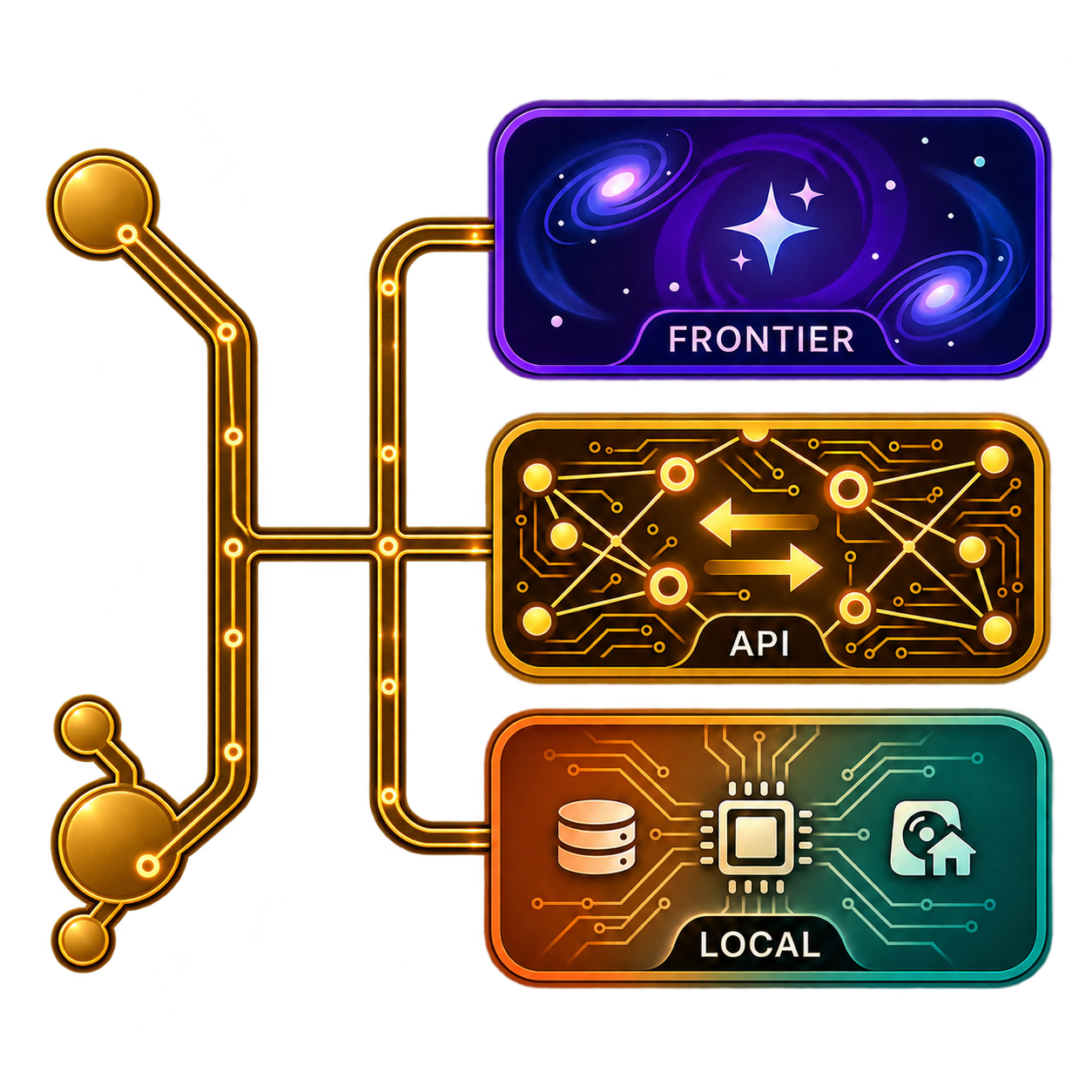
OmniModelChat puts frontier models, any compatible API and models running on your own computer into one desktop workspace. Draft with a local model, bring in GPT, Claude or Gemini when you need more, research the live web, and work on your documents, code, images and video, in one history that lives on your machine.
Give a specialist one job on the model you choose, carry on in the same chat, and see which chats need you.
Type /code, /research or /maintain, or make your own. Each agent uses the exact model you choose and only the tools you allow, and every action keeps its review.
Keep asking while an agent works, stop it from its own card, and reply to send it back to work on the same model. The sidebar shows which chats are working, finished or waiting for you.
How it works 03 · RUN MOREGo joins Python, Ruby, PHP, C and C++ in the offline run panel. Java runs too, with part of the standard library and no typed input. Agents' finished files get a Preview or Run button.
See the run panelMost chat apps are a window onto one company's models. Want a second opinion from someone else's model and you start again, re-pasting everything you'd already built up. In OmniModelChat the conversation belongs to you, and the model is just whoever is answering right now.
Pick a model and carry on. Your choice stays with that chat across refreshes, navigation and reopening. New chats start with your Settings or Project default.
Edit a question or regenerate an answer and the original stays put. Step between the alternatives, choose one, and the context follows the branch you picked.
The inspector shows what the model will receive, item by item, with token costs. Compact context summarizes older turns when a chat grows long, and the full history stays on disk.
Drafts survive navigation and restarts. Stop keeps the partial answer, and an answer cut off at its limit can be continued. Interrupted work is marked, never silently replayed.
Local servers and cloud APIs sit side by side as named connections. Discover what's available, star favorites, or type an exact model ID when a provider leaves one off its list.
Pick a model and it starts loading at once. The menu lists what's installed, and the app reads the context the loaded model actually has.
Point at your Ollama server and its installed models appear in the menu, sized to the context they have loaded.
Sign in with your ChatGPT subscription or use an API key: streaming, vision, web search and tool calling through the Responses API, and GPT Image for creating and editing images with an API key.
A native Messages adapter for Claude: streaming, images and tool use, with prompt caching to cut the cost of repeated context.
A native Gemini adapter for chat, images and tools, and the engine behind video analysis, chapters and scene checks.
Discover OpenRouter's chat models and dozens of image models with your own key, or use any OpenAI-compatible service or a trusted model server on your network.
Bring in a video of any size, a film, a lecture, a three-hour podcast, or a public YouTube link. The chat becomes a video workspace: the player and a timeline of scenes, speech and the times answers cite sit above the conversation, with Find, Ask and Index tabs beside it, each in its own color. Hover over any control for a short explanation, and Back to chat is one click away. Shots and frames are found on your computer, and anything paid shows its price first.
WhisperX, offline and free and installed by the app in a few clicks, using your graphics card when it can, or AssemblyAI in the cloud for about $0.21 an hour. Download as text or subtitles.
Paste a public YouTube link to import a local copy with its creator chapters, or fetch just its captions without downloading the video.
One name for each person or thing, with the other names it goes by, so a search for one finds the others. Hide suggestions you don't want.
A one-line description of every shot, free from a vision model on your computer, searchable in the Index tab, which also prepares whatever Find is missing.
A vision model on your computer checks the likeliest scenes for free, or Gemini for about $0.004 each, and stops at the first it confirms. Going further is always your call.
Any answer or scene saved as an MP4 with sound, starting on the exact frame, with Open, Show in folder and Delete.
Normal accuracy for an overview, High accuracy in batches. Gemini, OpenAI, Anthropic, OpenRouter or a local or LAN vision model reads the frames, and answers list each finding with a linked time.
In a Local-only chat no video, audio, frames or thumbnails leave your computer; chapters use a vision model on this machine.
Choose an accuracy option in the video panel before preparing your frames.
Up to 24 samples spread across your selected range for a quick overview. Optional closer inspection stays within two requests and 24 frames total.
Good for: a first look at a lecture, scene or interview.Uses your chosen frame interval and works through batches of up to 12 frames. Review the request count and estimated cost, follow progress and stop when you have enough.
Good for: looking for a brief visual detail across a longer range.With OpenAI, Anthropic and OpenRouter, the model list shows each model's price per million tokens, every run shows the listed price for approval, and the answer shows the tokens used and the cost. More samples can catch moments an overview misses; neither mode guarantees finding everything between frames. Completed batches stay saved if you stop. Providers may charge for work already received, and failed requests are not automatically retried. In this route, the original video and audio stay on your computer; the selected vision model receives the extracted frames.
The app installs FFmpeg and WhisperX for you, from their official releases with every file checked, in Settings → Video → Video tools. Gemini analysis and chapters use your own Gemini API key, billed by Google; sampled frames can also use your OpenAI, Anthropic or OpenRouter key, billed by that provider; cloud transcripts use your AssemblyAI key; YouTube captions use yt-dlp. Models can misread a scene, so check what matters against the video.
Create and edit images with OpenAI's GPT Image, Google's Gemini image models (Nano Banana) or any of the dozens of image models on OpenRouter, from FLUX and Seedream to Qwen Image, Grok Imagine, MAI-Image, Recraft and Krea, using your own keys. The image model is chosen separately, so the model you chat with stays the same.
Ask for an image in an ordinary chat and you approve one card showing the provider, references, style and final size before anything is sent. Image generation is billed by the provider you choose, separately from chat. Local-only chats never send prompts or images to a cloud image service, and image models on your own computer aren't supported yet.
Open a project folder and work on it with whichever model suits the job. Files are read, written and committed through cards you can inspect, and code you preview or run from the chat stays in a sealed, offline sandbox inside the app.
input() ask you in the run panel, as they would in a terminal. Models can ask to run code, and you approve each run./code, /research, /maintain or your own. It uses the exact model you choose and only the tools you allow, and the chat stays free while it works. Reply to its answer and the work goes back to the same agent and model.Previews and the run panel stay in the offline sandbox, and no model gets a terminal. In a project chat, a model or agent can ask to run one of a few fixed build and test commands in that project's folder. It runs on your computer only after you approve it, and it can change files there and use the network. Extra Python packages and language runtimes are downloaded only when you approve, and checked against hashes built into the app.
Some conversations should never leave the building. Mark a chat Local only and the app refuses to send it anywhere but a model on this machine: no cloud inference, no web search, no connected apps.
The limits, stated plainly: the gateway governs what OmniModelChat sends. It can't vouch for what a model server, Windows or other software does on its own — and a LAN server, however trusted, doesn't count as this machine.
An answer from training data isn't a search, however confident it sounds. OmniModelChat retrieves the evidence for your chosen model, including models running in LM Studio or Ollama. Ask for a summary, follow the source cards, and see which pages were read or only available as snippets.
Your message, or a focused query you write, goes to Brave Search using your own key.
Selected pages are read, then shortened into useful excerpts with room for each source. If a page can't be read, its labeled search snippet stands in.
Your chosen model, including LM Studio or Ollama, receives excerpts from up to five sources and is asked for a cited summary. Open the source cards to check its answer.
Source cards show what was retrieved; the answer still depends on your model. If a local model asks for an unavailable tool, the app gives it one correction using the tools actually available and keeps the evidence already found. Check the summary against the sources.
Turn research on with the globe beside the plus button — neon means on, gray means off. Brave receives the query and Jina receives the addresses it reads; neither receives your conversation.
Custom MCP connectors add tools from other services over HTTPS, with presets for Microsoft Learn, Context7 and Firecrawl. Every tool call waits for you, and every call, argument and result stays visible in the chat.
Tools from MCP connectors you add and enable
Each callAn action interrupted mid-flight is marked uncertain
Never auto-retriedLocal only chats never reach a connector
BlockedThe built-in Gmail, Google Drive and Google Calendar integrations were removed in 1.0.21.
Hover over any video or image setting for a short explanation of what it does and what it costs; keyboard users get it on focus.
Attach PDF, Word, Excel and PowerPoint files. Their text is extracted on your computer; macros never run.
Send images to vision-capable models, local or cloud, as real image input.
Put two answers side by side, then use one or combine them into an editable draft. The originals stay put.
Edit, save revisions, restore an earlier one and download as Markdown, with every version kept.
See and edit exactly what goes to the next model before you hand a conversation over.
Notes, saved answers, images, transcripts and files you can reuse in any chat, and download.
Search every message, pin, archive and restore, and export or import whole conversations with their branches.
Star models across your connections and pick them from one menu. Search, filter and hide the ones you don't need.
System, light or dark themes, remembered on each device, with reduced motion honored.
A searchable guide inside the app that works offline, also as a web page and PDF.
Check for updates from the app, and read redacted diagnostic logs when something goes wrong. API keys stay masked.
There's no OmniModelChat cloud for your conversations to sit in. The app talks directly to the services you configure, and only when an action you asked for needs them.
%APPDATA%\OmniModelChat on Windows, ~/Library/Application Support/OmniModelChat on a Mac.The local database isn't encrypted at rest, so it's as private as your computer account. To back up, close the app and copy its data folder. Full details are in the Privacy Policy.
OmniModelChat is a development preview for Windows and Apple Silicon Macs. Here is what has been proven against real services, what's being finished, and what comes next.
Updates are now signed: from this version on, the app checks a signature on the update list before offering an update, made with a key that never leaves the publisher's computer, so a changed website could not offer its own installer. Startup is faster with long histories. A YouTube import can be stopped while it downloads and keeps the video's name. Switching chats right after sending a message no longer shows the wrong chat's messages. How your data is stored is unchanged.
Fixes from a code review; how your data is stored is unchanged. On Windows, a model could reach a credential file such as .env, or the .git folder, in a shared or project folder by asking for it under another spelling Windows accepts, such as a trailing dot or a short name like ENV~1. Those spellings are now checked against the real name. The code preview offers to load only https:// resources. Updates wait for agents working in the background, and a download gets 30 minutes and says why it stopped. Also: a saved Supadata key can be shown, automatic web search notices the current year, long tool results keep more of their text, and switching chats while an answer finishes no longer shows the wrong chat's messages.
A small safety release that doesn't change how your data is stored. If the app finds chats saved by a newer version, it now says so in plain words, changes nothing and opens the update window so you can install the newer version. Create image on a new install starts at 1024 × 1024 instead of 0 × 0. The branch menu above the message box is gone; the ‹ › arrows beside a message switch versions.
If version 1.0.22 or earlier says it could not initialize its local database, it can't update itself. Download the latest version from this page and install it over the old one; your chats are kept.
Agents: give a specialist one task with /code, /research, /maintain or your own, on the exact model you choose and with only the tools you allow. The chat stays free while an agent works, and a reply goes back to the agent that answered. The sidebar shows which chats are working, finished or need you, and alerts tell you when one does. A model's Python now runs in the background. Go and limited Java join the offline run panel; Java has part of the standard library and no typed input. Ctrl + K (⌘ + K on a Mac) opens a command palette for any chat, page or action, with keyboard shortcuts for the rest. A new install offers to find LM Studio or Ollama, or take an API key, and choose a default model. Edited and regenerated messages get ‹ › arrows to switch versions. Pictures and documents are now stored apart from the records that list them, so the app opens faster; a database opened by 1.0.23 can't be opened by an earlier version.
Models get clearer default instructions, including using tools for current facts and saying when they are unsure. Every chat now knows today's date. Attached documents are labelled as untrusted data for chat and image models, which guides a model but cannot guarantee it ignores text inside a document. Small-context models stop less often during tool work.
Asking how many files a shared folder holds now gets the right answer; a model could previously check the chat's attachments instead and report an empty folder. The built-in Gmail, Google Drive and Google Calendar integrations are removed. Custom MCP connectors and Gemini models remain.
Attach Markdown, text or documents to guide image creation. Their extracted text becomes background for the image prompt; picture attachments remain visual references. Documents alone no longer cause a stored-image error or require an image-editing model, and mixed document/picture requests retain both kinds of context. Local-only restrictions still apply.
Video analysis is no longer tied to Gemini. The video settings now let you pick Gemini, a cloud vision model, or a vision model running on this computer or your network. Models other than Gemini read sampled frames, so cloud analysis uploads frames to that provider; scene checks still use Gemini. Key settings for Web research and Supadata also link straight to where you sign up for a key.
Code blocks in Ruby, PHP, C and C++ now have Run, like Python. Each language downloads its runtime once, on first use, and programs run offline in the same isolated panel. Page previews got better too: Tailwind pages keep their styling, React pages use React 19.3, links to other parts of a page work, and a Load pictures and fonts button brings in the photos and web fonts a page asks for while the preview itself stays offline.
Python programs can ask you for input. When a program calls input(), its question appears in the run panel; type an answer, press Enter, and the program carries on, as it would in a terminal. This works for programs a model runs too, and Python stays offline and isolated from your files.
Housekeeping and a fix. Deleting a chat or a Library item now also removes the attachments, video files, chapters and frames that nothing uses any more, and old update downloads are cleared. This happens automatically, and Settings has a Perform garbage cleanup button for routine upkeep. Your chats, Library items, projects and saved files are never touched. Slow image models, including several on OpenRouter, no longer time out after 30 seconds.
Opening a video now turns the chat into a video workspace: the player and a timeline above the conversation, and Find, Ask and Index tabs. Find searches what is said, who is there, what each shot shows and the scenes on your computer for free. Sampled frames can use OpenAI, Anthropic and OpenRouter vision models, priced before sending, and answers list each finding with a linked time. Times in answers link to the video even when written plainly, and image settings are grouped in colored cards with hover explanations.
Yes. A choice in the chat model menu stays with that conversation across refreshes, navigation and reopening, until you change it again. Choosing a connection pins its current model. New chat starts with your Settings default or Project default. Stop an active response before switching models.
Usually, with a cloud model: more frames mean more requests and tokens. Start with Normal accuracy for a lower-cost overview. High accuracy shows the request count and approximate cost before cloud analysis; estimates depend on available pricing and actual usage can differ. Stop cancels the active request and remaining batches, but cannot undo provider charges for work already received. A vision model running on your own hardware avoids cloud API charges.
Yes, with web research enabled and your Brave Search connection configured. The app retrieves sources through Brave and Jina, then sends short excerpts to your chosen local model for a cited answer. A source card alone is not a summary, and a model may still refuse or give an incomplete answer. Research sends queries and page addresses to external services, so it is blocked in Local-only chats.
No. There's no OmniModelChat account and no OmniModelChat server. You connect what you already have: a local LM Studio or Ollama install, your own API keys for cloud providers, or both.
Yes. With LM Studio or Ollama running on your computer, your chats run entirely on your hardware, and video chapters and sampled frames can use a local vision model too. Mark a conversation Local only and the app will refuse to send it to cloud models, web search or connected apps until you explicitly release it.
OpenAI's GPT Image models and Google's Gemini image models (Nano Banana) with your own API keys, and the image models OpenRouter lists: dozens, from makers including Black Forest Labs (FLUX), ByteDance (Seedream), Qwen, xAI (Grok Imagine), Microsoft (MAI-Image), Recraft and Krea. OpenRouter's list is live, so what's on it changes; vector-only models are left out. See Images. Generation is billed by the provider you choose, separately from chat. Image models on your own computer aren't supported yet.
No. Conversations, attachments and your library are stored in a database on your computer, and API keys and app tokens are kept in Windows Credential Manager or the macOS Keychain. The app sends no telemetry. Data leaves your machine only to reach the services you've chosen, for the action you asked for.
The built-in integrations were removed in 1.0.21. Saved credentials for them are retired when the app starts, and content saved from them can be reviewed and deleted under Settings, Retired integration data. External exports, backups and the data in your Google account are not touched.
Windows 10 or later, using Microsoft's Edge WebView2 runtime, and Apple Silicon Macs. Browser access is planned after the desktop release.
FFmpeg, and WhisperX for free transcripts on your computer: the app installs both for you in Settings → Video → Video tools, showing the download size and disk space first and checking every file. WhisperX takes about 3 GB on disk, or 11 GB for the faster NVIDIA GPU version. Cloud transcripts use your AssemblyAI key, YouTube captions and imports use yt-dlp, Gemini analysis uses your own Gemini API key, billed by Google, and sampled frames can also use your OpenAI, Anthropic or OpenRouter key. Chapters can also be grouped by a vision model in LM Studio or Ollama at no cost. Anything paid shows an estimate before it runs.
Only when you approve it. Code previews and the run panel are isolated and offline, with no access to your files, your network or the app itself. In a project chat, a model or agent can ask to run one of a few fixed build and test commands in that project's folder; each run waits for you, and it can change files there and use the network. A model can't type its own command. Project files are written by the app after review, and Git actions wait for your approval.
Download the Windows or Apple Silicon development preview with the preview code you were given. Windows installers are unsigned; the Apple Silicon installer is signed and notarized.

Download the development preview and use your own model accounts: local models, frontier APIs, research, projects, images and video in one desktop app. ChatGPT subscription chat is verified on Windows; Mac account checks are still pending. Claude and Gemini use API access.
Downloads need a preview code. Windows installer is unsigned. Apple Silicon 1.0.26 is Developer ID signed, Apple notarized and stapled. Preview builds are not a general production launch.